Install in one tap
On Android phones and tablets, and in Chrome or Edge on a computer, press the button below and confirm. MoovLimo then opens in its own window, like any other app.
The MoovLimo app is installed on this device. Open it from your home screen or app list.
On this iPhone or iPad: tap the Share button in Safari, then Add to Home Screen, then Add.
iPhone and iPad
- Open moovlimo.com in Safari.
- Tap the Share button (the square with an arrow).
- Scroll down and tap Add to Home Screen.
- Tap Add. The MoovLimo icon appears on your home screen.
Android
- Open moovlimo.com in Chrome.
- Tap Install app when it is offered, or open the menu (three dots) and choose Install app or Add to Home screen.
- Confirm. MoovLimo appears with your other apps.
Windows, Mac and Chromebook
In Chrome or Microsoft Edge, click the install icon at the right of the address bar, or open the browser menu and choose Install MoovLimo. On a Mac with Safari, choose File > Add to Dock.
What the app does
The app opens straight to MoovLimo with shortcuts to reserve a chauffeur, pay a quote or invoice and the Travel Desk, plus 24/7 dispatch on WhatsApp. Pages you have opened stay readable when the signal drops at an airport or in a tunnel. It asks for no location, contacts or notifications, and booking details still go only through our secure reservation page. Bookings made under an alias with our Privé protocol work exactly the same way.
Frequently asked questions
Is the MoovLimo app free?
Yes. It is free to install and use; you pay only for the trips you book.
Do I need the App Store or Google Play?
No. MoovLimo is a web app: it installs directly from moovlimo.com on iPhone, Android and desktop, and it updates itself.
Does the app need an account?
No. Install it and book straight away; the reservation page asks only for the trip details and passenger name, or an alias.
How much space does it take?
Very little, usually well under 5 MB, because it reuses your phone's browser engine.
How do I remove the app?
Delete it like any other app: press and hold the icon, then remove it. On a computer, open the app and choose Uninstall from its menu.
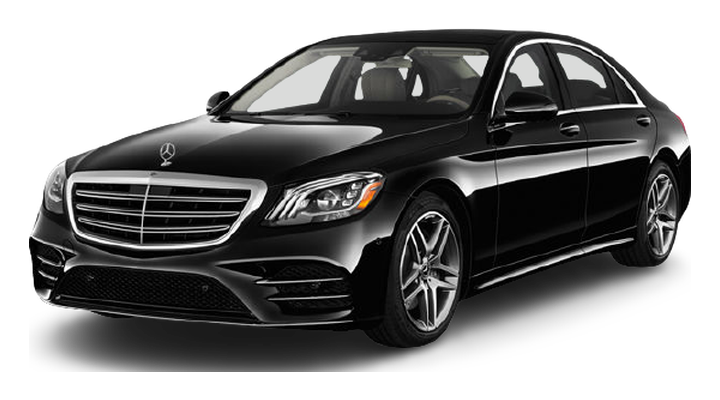 Mercedes-Benz S-Class
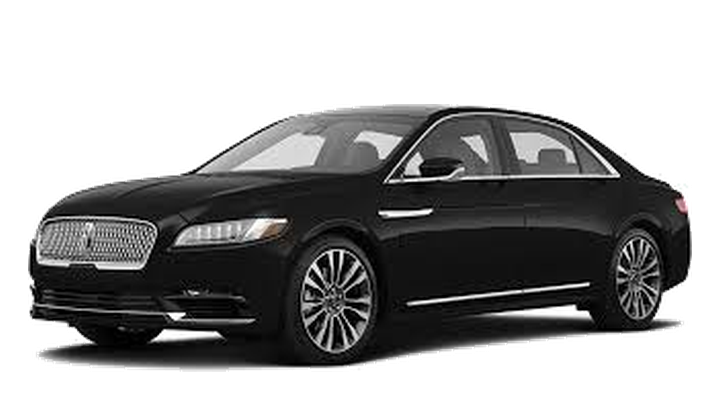 Premier Executive Sedan
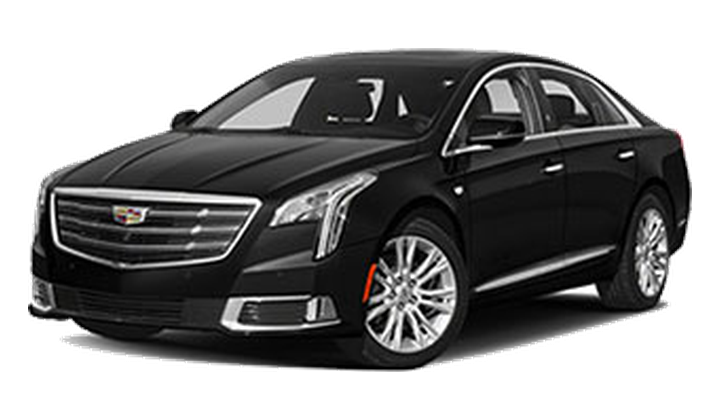 Executive Sedan
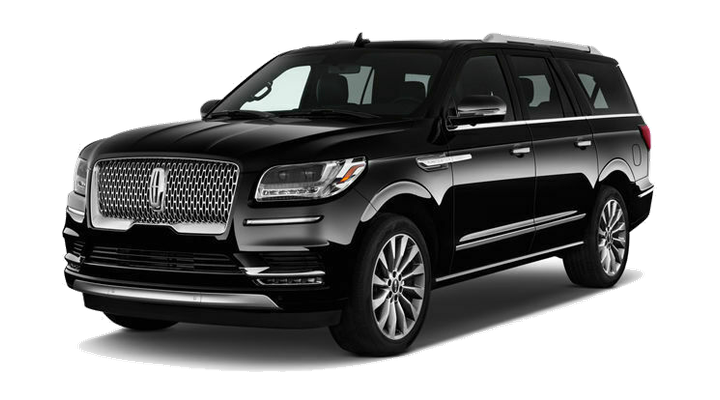 Premier Luxury SUV
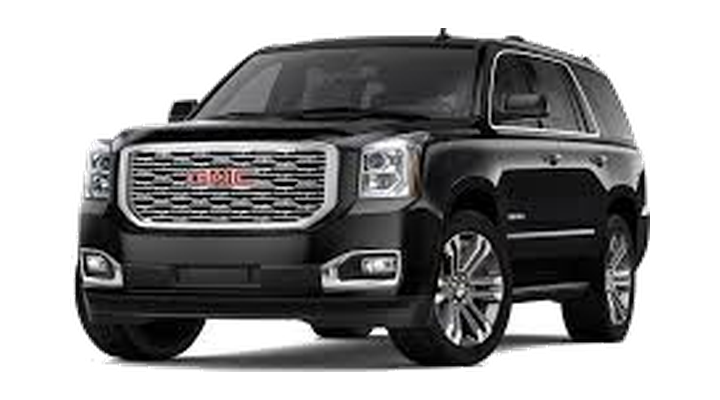 GMC Yukon XL / Suburban
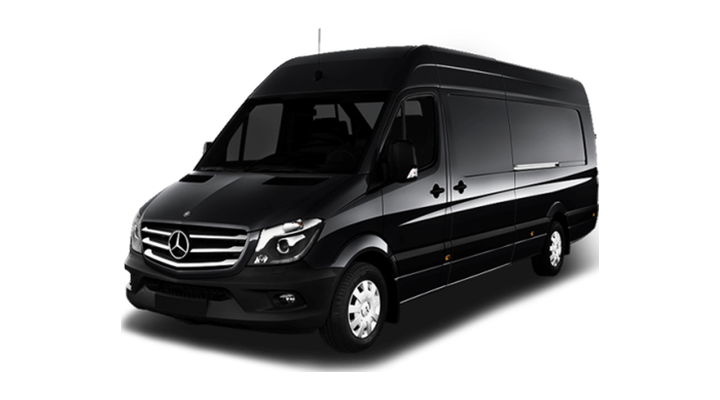 Mercedes-Benz Sprinter
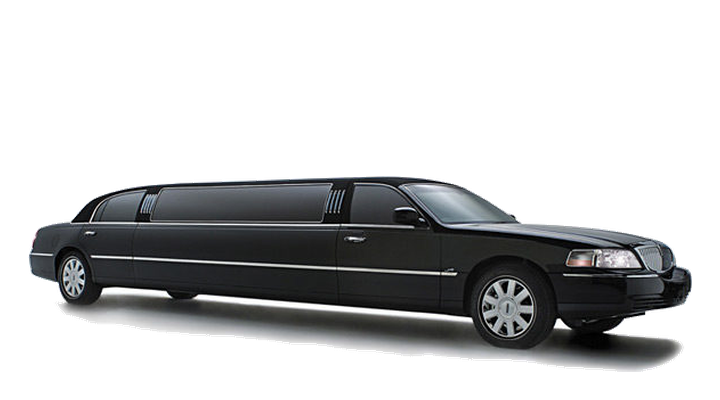 Stretch limousine